FPS Controller
A first-person CharacterBody3D for Godot 4.7 with mouse look, sprint, crouch with a ceiling check, coyote time and jump buffering. It brings its own input actions and 54 behaviour tests that prove each feature.
Drop it into your project
- Unzip, then copy
player.gd,player.gd.uidandplayer.tscninto your project, for example intores://player/. Keep the.uidfile: it holds the script's ID, andplayer.tscnrefers to the script by that ID as well as by its path, so the scene still finds the script in a folder of your choosing. In a test, these three files copied intores://player/of a new Godot 4.7 project imported and ran with no errors. Leave out the demo files,autopilot.gdandtests/unless you want them. - Instance
player.tscnin your level and put its origin on the floor: the origin is at the feet, not the middle of the capsule. Your floors and walls need collision on layer 1, which is the layer the player's collision mask checks. - Run the scene. Click in the game window to capture the mouse and look around, and press Esc to free it again. Move with W A S D or the arrow keys, jump with Space, sprint with Shift and crouch with Ctrl or C.
- The keys work without any setup. That is not because of
project.godot, which you did not copy:player.gdchecks for its seven actions (move_forward,move_back,move_left,move_right,jump,sprint,crouch) when the player starts and adds any that are missing, with the keys above. That is enough to play. To rebind keys or add a gamepad, create the same seven actions under Project Settings > Input Map, or paste the[input]section of the zip'sproject.godotinto yours. The script never touches an action that already exists. - Tune the player in the Inspector. The exports are grouped as Movement, Jump, Crouch, Mouse look and Head bob, and the table below lists each one. To change the standing height, resize the capsule in
player.tscnand moveHead: the script reads both when the player starts. - To run the tests, open a terminal in the unzipped folder and run
godot --headless --path . --fixed-fps 60 res://tests/player_test.tscn, withgodotbeing your Godot 4.7 executable. Each check prints PASS or FAIL with what it measured, and the exit code is the number of failures. Without--headless, four mouse checks that need a window run as well. The tests also work after you copytests/next to the player in your own project, since they load the player by its ID: runres://player/tests/player_test.tscninstead.
Parameters
| Name | Type | Default | What it does |
|---|---|---|---|
speed | float (0 to 20) | 5.0 | Walking speed on the ground, in m/s. Measured: 5.000 m/s, the same straight or diagonal. |
sprint_multiplier | float (1 to 3) | 1.6 | Sprint speed is speed times this while sprint is held: 8.000 m/s measured. Has no effect while crouched. |
acceleration | float (1 to 200) | 40.0 | How fast the body reaches its target speed on the ground, in m/s². 40 takes a standing player to 5 m/s in 0.125 s. |
air_acceleration | float (0 to 200) | 10.0 | The same in the air. Lower than on the ground, so a jump keeps most of its direction but you can still steer. 0 locks the direction at take-off. |
jump_velocity | float (0 to 20) | 4.5 | Upward speed at the start of a jump, in m/s. The jump peaks at jump_velocity² / (2 × gravity): 1.03 m with Godot's default gravity of 9.8. |
coyote_time | float (0 to 0.5) | 0.12 | Seconds after walking off an edge during which jump still works. At 60 physics ticks per second, the last tick that allows it is 0.117 s after the edge. |
jump_buffer_time | float (0 to 0.5) | 0.1 | Seconds a jump pressed in the air is remembered, so it fires on the tick you land. 0 turns buffering off. |
crouch_height | float (0.8 to 1.8) | 1.0 | Height of the capsule while crouched, in metres. At least twice the capsule radius. The eye sits 0.2 m below the top, at 0.8 m. |
crouch_speed_multiplier | float (0.1 to 1) | 0.5 | Crouch speed is speed times this: 2.5 m/s. |
crouch_camera_speed | float (0.5 to 30) | 6.0 | How fast the eye moves between standing and crouching height, in m/s. At 6 the 0.8 m change takes 0.13 s. The capsule itself changes at once. |
mouse_sensitivity | float (0.0001 to 0.01) | 0.002 | Radians of turn per pixel the mouse moves on screen. 0.002 turns 0.2 rad, about 11.5°, per 100 pixels. |
pitch_limit_degrees | float (1 to 90) | 89 | How far the view can tilt up or down. 89 stops just short of straight up, so the view never flips over the top. |
head_bob | bool | false | Moves the camera in a small up-and-down and side-to-side pattern while you walk on the ground. Off by default, because bob makes some players feel sick. |
bob_height | float (0 to 0.2) | 0.04 | Largest distance the camera moves up or down from rest, in metres. The side-to-side sway is half of it. |
bob_stride | float (0.2 to 5) | 1.6 | Metres walked per full bob cycle, one step with each foot. The bob follows distance, not time, so it speeds up when you sprint and stops when you stop. |
How it works
A first-person controller is four small systems on one body: mouse look, horizontal movement, jumping and crouching. Each runs in a few lines of player.gd. This section goes through them in the order the script runs them, explains the choices that are easy to get wrong, and shows the test that proves each one. The full script is in the zip; the code below is the part each idea needs.
CharacterBody3D, not RigidBody3D
A RigidBody3D is moved by the physics engine: you push it with forces and it slides, spins and bounces as the engine decides. That is right for a crate and wrong for a player, who expects to stop the moment the key comes up and never to tip over. A CharacterBody3D moves only when your code tells it to. You set velocity and call move_and_slide(), which moves the body, slides it along whatever it hits instead of stopping dead, and records whether it ended up on a floor, a wall or a ceiling. is_on_floor() then answers the question every jump and every gravity step needs. You get exact control over speed, and the engine still handles collision.
Yaw on the body, pitch on the head
Mouse look is two rotations. Left and right (yaw) turns the whole body, because the body's facing is what decides which way "forward" walks. Up and down (pitch) tilts only the Head node, which carries the camera. If pitch went on the body too, looking down would tip the capsule over and "forward" would point into the floor. Keeping each rotation on its own node also rules out roll, the sideways tilt of the horizon: the body only ever turns about y and the head only about x.
func look(screen_pixels: Vector2) -> void:
	rotation.y = wrapf(rotation.y - screen_pixels.x * mouse_sensitivity, -PI, PI)
	var limit := deg_to_rad(pitch_limit_degrees)
	head.rotation.x = clampf(head.rotation.x - screen_pixels.y * mouse_sensitivity, -limit, limit)
The script works out each new angle, clamps the pitch, then sets the angles. A common alternative is to call rotate_x() first and clamp the angle Godot reads back out of the rotated basis afterwards. In a test with that version, ordinary flicks of up to 1,200 pixels were clamped correctly, but one very large upward move of 100,000 pixels ended at -60.8° instead of 89°, because the angle read back had wrapped round. Clamping before setting has no such case. In the tests, a huge upward move stopped at exactly 89.000° and a huge downward one at -89.000°, and after 5,000 random mouse moves the body's x and z rotation and the head's y and z rotation were still exactly 0, with the camera's right-hand axis level to within 0.000000001.
Reading the mouse
The look code runs from _unhandled_input(), so a click that a button or a menu handles never captures the mouse. A click anywhere else captures the mouse, ui_cancel (Esc in every project) frees it, and mouse motion only turns the view while the mouse is captured.
func _unhandled_input(event: InputEvent) -> void:
	if event is InputEventMouseButton and event.pressed:
		Input.mouse_mode = Input.MOUSE_MODE_CAPTURED
	elif event.is_action_pressed(&"ui_cancel"):
		Input.mouse_mode = Input.MOUSE_MODE_VISIBLE
	elif event is InputEventMouseMotion and Input.mouse_mode == Input.MOUSE_MODE_CAPTURED:
		look(event.screen_relative)
It reads screen_relative, not relative. The InputEventMouseMotion docs say relative is scaled by the content scale factor that the project's stretch mode sets, so mouse sensitivity changes with the window size, and that screen_relative should be preferred for mouse aiming in captured mode. In a test project drawn at 640 x 360 and stretched to a 1280 x 720 window, a 100 pixel mouse move arrived as relative 50 and screen_relative 100. The controller's test feeds it an event with those two values and checks that the body turned 100 × 0.002 = 0.2 rad.
Splitting velocity in two
Each physics tick, the script treats the horizontal part of velocity (x and z) and the vertical part (y) separately. Gravity and jumping own y. The input owns x and z. Mixing them is the classic bug: replace the whole velocity with the input direction and you wipe out the falling speed every tick, so the player floats down at a crawl.
var input := Input.get_vector(&"move_left", &"move_right", &"move_forward", &"move_back")
# Turn the input by the body's yaw only. The head's pitch never tilts movement.
var direction := global_basis * Vector3(input.x, 0.0, input.y)
...
var target := Vector2(direction.x, direction.z) * target_speed
var rate := acceleration if is_on_floor() else air_acceleration
var horizontal := Vector2(velocity.x, velocity.z).move_toward(target, rate * delta)
velocity.x = horizontal.x
velocity.z = horizontal.y
Input.get_vector() turns four actions into one vector no longer than 1, which is why holding forward and right gives the same 5 m/s as forward alone (measured: 5.000 m/s, not 7.07). Multiplying by global_basis, the body's rotation, turns "forward on the keyboard" into "forward where the body faces": in the test, a player turned 90° to face -x walked at (-5, 0) m/s. The basis only holds yaw, so looking at the floor never slows you down. move_toward() moves the current horizontal velocity towards the target by at most rate × delta per tick, which gives a short, even acceleration: 5 m/s after 8 ticks, 0.133 s, against the 0.125 s that 5 / 40 predicts, the difference being one tick. Gravity comes from get_gravity(), so an Area3D that changes gravity in part of your level changes it for the player too.
Coyote time and jump buffering
A strict "only jump when is_on_floor()" feels broken in practice. Players press jump a moment after running off a ledge, because they see the edge late, and the game ignores them. Coyote time, named after the cartoon coyote who runs off a cliff and only falls when he looks down, keeps the jump valid for a short time after leaving the floor. Jump buffering covers the opposite mistake: jump pressed a moment before landing is remembered and fires on the tick you touch down. Both are one timer each.
func _update_jump(delta: float) -> void:
	if is_on_floor():
		_coyote_timer = coyote_time
	else:
		_coyote_timer -= delta
	if Input.is_action_just_pressed(&"jump"):
		_jump_buffer_timer = jump_buffer_time
		_try_jump()
	elif _jump_buffer_timer > 0.0:
		_jump_buffer_timer -= delta
		_try_jump()


func _try_jump() -> void:
	if is_on_floor() or _coyote_timer > 0.0:
		velocity.y = jump_velocity
		_coyote_timer = 0.0
		_jump_buffer_timer = 0.0
Setting both timers to 0 after a jump matters. The coyote timer would otherwise still be running for the first 0.12 s of the jump, and a second press in that time would jump again in mid-air. One test presses jump again 0.05 s after take-off and checks that the player did not jump; with the _coyote_timer = 0.0 line deleted, it jumped. The buffer timer would otherwise still hold the press that started the jump. Under a ceiling 1 cm above the head, the jump hits the ceiling and the player is back on the floor while the press is still buffered: one press gave one take-off, and with _jump_buffer_timer = 0.0 deleted it gave two. The tests walk the player off a 1 m box and press jump a set number of ticks after it left the floor: at 0.050, 0.100 and 0.117 s it jumped, at 0.133, 0.150 and 0.200 s it fell. They also drop it from 2 m and press jump before it lands: pressed 0.050 or 0.083 s early, it jumped on the landing tick; 0.133 or 0.150 s early, the press had expired. A second press 0.25 s into a jump changed nothing either. The jump itself peaked 1.071 m above the floor. The formula gives 4.5² / (2 × 9.8) = 1.033 m; the extra 3.8 cm is the step size, since the body moves a whole tick at a time, and it stays within one tick of travel (0.075 m).
Crouching with a headroom check
Crouching changes the capsule's height from 1.8 to crouch_height and moves the shape down by half the difference, so its bottom stays at the feet and the body does not drop. The camera follows at crouch_camera_speed, so the eye glides down instead of jumping. Standing up is where controllers usually go wrong: if you just grow the capsule back, a player under a low beam grows into it and gets pushed through the floor or out to the side. So before standing, the script sweeps a sphere through the space the standing capsule would fill, from the top of the crouched capsule up to the full height, using the HeadroomCheck node:
func _has_headroom() -> bool:
	var radius := (headroom.shape as SphereShape3D).radius
	headroom.position = Vector3(0.0, crouch_height - radius, 0.0)
	headroom.target_position = Vector3(0.0, _stand_height - crouch_height, 0.0)
	headroom.force_shapecast_update()
	return not headroom.is_colliding()
A ShapeCast3D moves a shape along a line and reports what it would hit. The ShapeCast3D docs say force_shapecast_update() works with enabled off, so the node costs nothing until the player tries to stand. exclude_parent is on by default, so the player's own capsule never counts. The sphere is 5 cm narrower than the capsule, so a wall you lean on stays 5 cm clear of it. In the test the player crouched flush against a wall, 0.0001 m from it, and stood up. Under a beam 1.3 m up, the test released crouch and the player stayed at 1.0 m; walking on, it stood up at z = -3.948, just past the first clear spot at -3.85 (the beam ends at -3.5, plus the sphere's 0.35 m radius). Standing, the same player stopped at the beam's face.
Head bob from distance, not time
A bob driven by a clock keeps bobbing at the same rate whether you creep or sprint, and has to be stopped by hand. This one adds the horizontal speed times delta to a distance counter only while you move on the ground, and works the camera offset out from that distance: one full up-and-down per step, one side-to-side sway per stride. In the tests, walking 9.7 m gave 12 sway reversals and sprinting 15.3 m gave 19, against 12.2 and 19.1 from 2 × distance / bob_stride. The vertical offset peaked at exactly bob_height, 0.04 m, and fell to 0 within a second of stopping, then stayed there. It moves the Camera3D, not the Head, so it never fights the crouch height. With head_bob off, the camera offset stayed exactly 0 while sprinting.
Input actions that come with the script
Input actions live in project.godot, and nobody copies another project's project.godot. So the script carries its actions and default keys in a constant, and ensure_input_actions() adds whichever ones are missing when the player starts, using the InputMap calls the docs list: has_action(), add_action() (dead zone 0.2 by default) and action_add_event().
static func ensure_input_actions() -> void:
	for action: StringName in DEFAULT_BINDINGS:
		if InputMap.has_action(action):
			continue
		InputMap.add_action(action)
		for keycode: Key in DEFAULT_BINDINGS[action]:
			var event := InputEventKey.new()
			event.physical_keycode = keycode
			InputMap.action_add_event(action, event)
The keys are physical key codes, which name a position on the keyboard rather than a letter, so on an AZERTY layout the same four keys under your left hand still move you. The test deletes crouch and move_forward, empties jump and binds it to J, then runs the function: crouch came back with Ctrl and C, a physical W press matched move_forward, and jump still had only J. It is static, so another script can call FPSController.ensure_input_actions() before any player exists.
How the demo plays itself
autopilot.gd drives the player the way a person would: it holds and releases the same actions with Input.action_press() and turns the view through the same look(). It decides by position, not time: sprint until 3.7 m into the bay, jump at 5.15 m, crouch from 12.2 m. To walk straight while the view glances to the side, it turns the wanted direction into the player's own axes and presses forward and strafe by the right amounts, which Input.get_vector() reads as an analogue stick. The eight bays are identical, so each time the player has gone one bay, the AutoPilot moves it back 22 m and nothing on screen changes. That is how a 4 second recording loops. The AutoPilot is a node in demo.tscn, not in player.tscn, so it never runs in your game, and in the demo any key or mouse button hands you the controls.
How it builds on the first 3D scene lesson
The first 3D scene lesson writes a short player.gd with the same core: Input.get_vector(), horizontal and vertical velocity kept apart, and move_and_slide(). It moves along world axes under a fixed camera and uses its own gravity of 18 with a jump of 5 m/s, which peaks at 0.69 m. This controller turns movement by the body's yaw instead, takes gravity from the project (9.8 by default), and adds everything a first-person game needs on top. Its capsule is the lesson's, 0.4 m by 1.8 m, so a level built for one works for the other.
Pitfalls and renderer notes
- The keys do nothing after you copy the folder into your project. The input actions are stored in
project.godot, which stays behind. This controller adds any of its seven actions that are missing when the player starts, so it works, but those actions exist only while the game runs: they do not appear under Project Settings > Input Map and you cannot rebind them there. Create them in the Input Map (or paste the zip's[input]section) when you want to change keys. A script that reads these actions before the player is in the tree gets an error for an unknown action; callFPSController.ensure_input_actions()first. - Mouse sensitivity changes with the window size. That happens when the look code reads
InputEventMouseMotion.relative, which Godot scales by the stretch settings: in a project drawn at 640 x 360 and shown in a 1280 x 720 window, a 100 pixel mouse move arrived asrelative50 andscreen_relative100, so the same hand movement turned half as far. Readscreen_relative, as this script does. Itsmouse_sensitivityis in radians per screen pixel, so a player on a high-DPI mouse setting may still want a slider in your options menu. - The player cannot climb stairs.
CharacterBody3Dhas no step height setting.move_and_slide()treats a surface as floor when its angle is underfloor_max_angle, 45° by default, and the vertical face of a step is a wall. The rounded bottom of the capsule meets a low edge at a shallow angle, though, and with a 0.4 m radius that works up to 0.4 × (1 - cos 45°) = 0.117 m. In the tests the capsule walked onto a 0.12 m edge and was stopped by 0.13 m, walking or sprinting, in Jolt and in GodotPhysics3D. Ramps work: it walked up a 30° slope and could not climb a 50° one. Give stairs a hidden sloped collider, as the Prototype Kit does for its stairs, or write a step-up routine.floor_snap_length(0.1 m by default) is what keeps the player stuck to a slope while walking down it; raise it if the player hops when running down steep ramps. The project uses Jolt, which the Jolt Physics docs say new 4.7 projects use by default, and every headless test also passed with GodotPhysics3D. - The camera stutters on a high refresh rate monitor. Physics runs at 60 ticks per second by default, and this script moves the body in
_physics_process(), so on a 144 Hz screen the camera's position changes on only 60 of the 144 frames. Godot's fix is Project Settings > Physics > Common > Physics Interpolation, which is off by default in Godot 4.7 and draws bodies between ticks. The tests and the demo run without errors with it on. The physics interpolation docs add advice for first-person cameras: let the body's position be interpolated, but apply mouse rotation straight to the view without interpolation. This controller turns the body itself, so if you turn interpolation on, follow the docs' layout: move the yaw from the body to a childNode3Dthat holdsHead, and set that node'sphysics_interpolation_modeto Off. After you teleport the player, callreset_physics_interpolation()on it, as the demo's AutoPilot does, or the jump is drawn as a blur. - The player stands up inside a ceiling, or never stands up. A
ShapeCast3Dhas its owncollision_mask, 1 by default, which has nothing to do with the body's mask. If your ceilings are on layer 2 and only the body checks layer 2, the cast sees nothing overhead and the capsule grows into the ceiling.player.gdcopies the body's mask to the cast in_ready(), so set the mask on the player and both follow. In the test, a beam on layer 2 and a player with mask 3 (layers 1 and 2) kept the player crouched under the beam; with the copy line deleted, the cast stayed on mask 1 and the player stood up into the beam. If you change the player's mask at run time, copy it again. - Crouching one player shrinks every player. The capsule is a resource, and every instance of a scene shares its resources unless they are marked Local to Scene. Change
heighton a shared capsule and every copy of the player changes with it. The capsule inplayer.tscnhas Local to Scene on: in the test, one of two players crouched to 1.0 m and the other stayed at 1.8 m. With it off, both dropped to 1.0 m. Keep that box ticked if you replace the shape. - A jump pressed from code fires one tick late. When
Input.action_press()is called during a physics tick, which is where the AutoPilot and the tests call it,Input.is_action_just_pressed()only returns true on the next tick: measured in Godot 4.7.2, pressed in tick 5, read as just pressed in tick 6. Real key presses are not affected. If you script bots or replays this way, press one tick early, as the coyote and buffer tests do. - The jump is higher or lower than you set. The peak is
jump_velocity² / (2 × gravity), and the gravity is the one at the player's position: Physics > 3D > Default Gravity (9.8) or anArea3Dthat overrides it. Many games raise gravity for snappier falls. The first 3D scene lesson uses 18, and at 18 the default 4.5 m/s jump peaks at 0.56 m instead of 1.03 m. Pick the height first and work the speed out from it:jump_velocity = sqrt(2 × gravity × height), so a 1 m jump at gravity 18 needs 6.0 m/s. Expect the measured peak to sit a little above the formula, because the body moves a whole tick at a time: 1.071 m against 1.033 m in the test.
The controller is a script and physics shapes, so it behaves the same on every renderer: its tests measure the physics, which does not depend on how the frame is drawn. The demo scene was run under Forward+, Mobile and Compatibility with no errors or warnings, and Mobile matched Forward+ to within 1 of 255 on average. Compatibility draws a light that casts shadows in an extra pass, which Godot's renderer comparison lists as "less accurate blending". With the demo's sun casting shadows, the sunlit floor and ledge turned almost white under Compatibility, so the demo switches the sun's shadows off there. The level then looks the same apart from the missing shadows. If you ship a web build, which uses Compatibility, check your lighting there.
Pairs with
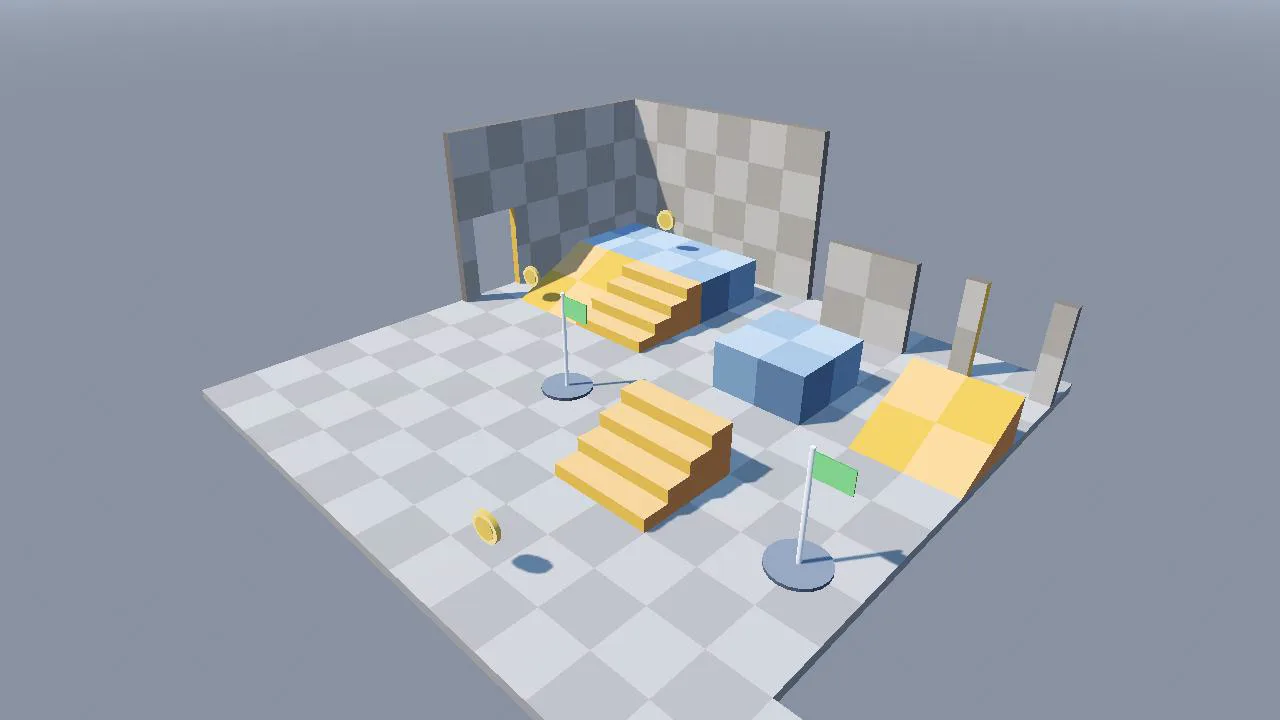
Prototype Kit
Nine low-poly greybox pieces on a 1 m grid that snap together and paint into a GridMap. The seven solid pieces get collision on import, the coin and the checkpoint stay walk-through, so you can block out a playable 3D level before any art exists.
- Godot 4.7
- CC0
Questions
How do I make a first-person controller in Godot 4?
Use a CharacterBody3D with a capsule CollisionShape3D, a Node3D head at eye height and a Camera3D under the head. Turn the body left and right and tilt only the head up and down with the mouse. In _physics_process(), add gravity to velocity.y while not on the floor, set velocity.x and velocity.z from Input.get_vector() turned by the body's basis, and call move_and_slide(). This page's download does all of that and adds sprint, crouch, coyote time and jump buffering, with tests for each.
Why is my mouse sensitivity different at different resolutions in Godot?
Because InputEventMouseMotion.relative is scaled by the project's stretch settings. In a test with a 640 x 360 project in a 1280 x 720 window, a 100 pixel move gave relative 50 but screen_relative 100. Read screen_relative for mouse look with a captured mouse; the Godot docs recommend it for exactly this case.
How do I add coyote time to a jump in Godot?
Keep a timer. Set it to your coyote time, such as 0.12 s, every physics tick the body is on the floor, and subtract delta from it every tick it is not. Allow a jump while the timer is above 0, and set it to 0 when the player jumps so a second press in the air does nothing. With 60 ticks per second, a 0.12 s window allowed jumps up to 0.117 s after the edge in this controller's tests and refused one at 0.133 s.
Can I use this FPS controller in a commercial game?
Yes. Everything in the zip, including the scripts, the scenes, the tests and the texture, is released under CC0 1.0, which places it in the public domain. You can use it, change it and sell games made with it without asking or giving credit. LICENSE.txt in the zip has the full legal text.